

Statsig
Statsig helps companies safely A/B test features in production before rolling them out, avoiding product debates and costly mistakes when shipping out new features. Statsig automates the grunt work so that your A/B tests run automatically, and you always get the latest insights into how your product features are performing.
RudderStack supports Statsig as a destination to which you can send real-time event data for efficient A/B testing.
Getting started
Before configuring Statsig as a destination in RudderStack, verify if the source platform is supported by Statsig by referring to the table below:
| Connection Mode | Web | Mobile | Server |
|---|---|---|---|
| Device mode | - | - | - |
| Cloud mode | Supported | Supported | Supported |
Once you have confirmed that your source platform supports sending events to Statsig, follow these steps:
- From your RudderStack dashboard, add the source. From the list of destinations, select Statsig.
- Assign a name to the destination and click on Next. You should then see the following screen:
Connection settings
The connection settings required to configure Statsig as a destination in RudderStack are listed below:
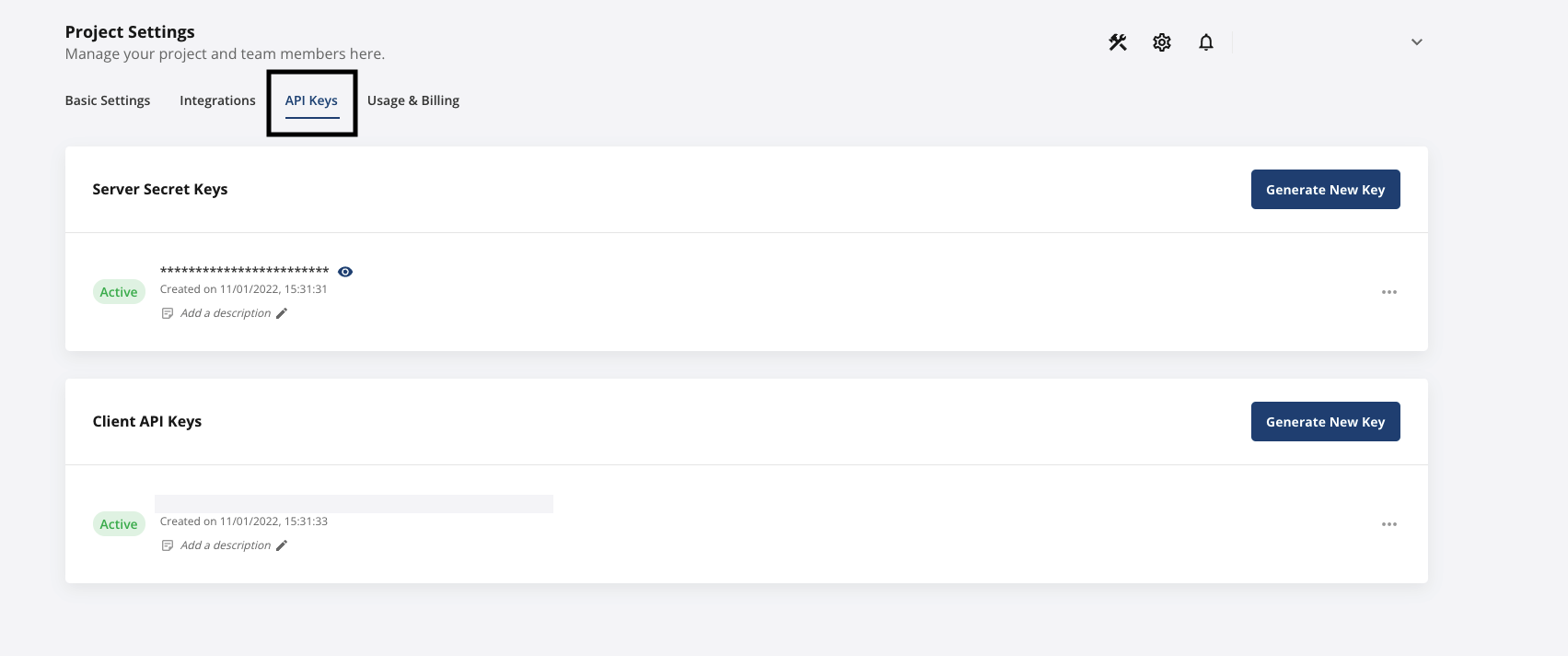
Server Secret Key: Enter your server secret key for your project here. To obtain the server secret key, follow these steps:
Go to your Statsig console.
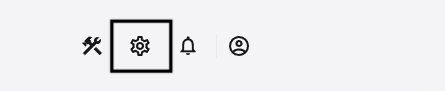
Then, go to your project and click on the Settings icon on the top right, as shown:
- Finally, click on API Keys. You should find the Server Secret Key here.
Identify
The identify call lets you identify a visiting user and associate them to their actions. It also lets you record the traits about them like their name, email address, etc.
A sample identify call is as shown:
rudderanalytics.identify("userId", { name: "Name Surname", email: "name@domain.com",})identify event, refer to the RudderStack Event Specification guide.Page
The page call lets you record your website's page views with any additional relevant information about the viewed page. Many destinations require the page events to be called at least once every page load.
A sample page call is shown below:
rudderanalytics.page("Home")page event, refer to the RudderStack Event Specification guide.Track
The track call lets you record the user events, i.e. the actions your users perform, along with any properties associated with these actions.
A sample track call is as shown:
rudderanalytics.track("Product Reviewed", { review_id: "12345", product_id: "123", rating: 3.0, review_body: "Average product, expected much more."})track call, refer to the RudderStack Event Specification guide.Screen
The screen call lets you record whenever a user views their mobile screen, with any additional relevant information about the viewed screen.
A sample screen call sent via the RudderStack iOS SDK is shown below:
[[RSClient sharedInstance] screen:@"Main" properties:@{@"prop_key" : @"prop_value"}];screen call, refer to the RudderStack Event Specification guide.Group
The group call allows you to link an identified user with a group, such as a company, organization, or an account. It also lets you record any custom traits associated with that group, e.g. the name of the company, number of employees, etc.
A sample group call is shown below:
rudderanalytics.group("12345", { name: "MyGroup", industry: "IT", employees: 450, plan: "basic"})group call, refer to the RudderStack Event Specification guide.Alias
The alias call lets you merge different identities of a known user.
alias is an advanced method that lets you change the tracked user's ID explicitly. This method is useful when managing identities for some of the downstream destinations.A sample alias call is as shown:
rudderanalytics.alias("12345")alias call, refer to the RudderStack Event Specification guide.Contact us
This integration has been built and maintained by Statsig. For any queries, you can contact the Statsig team or start a conversation in their Slack community. You can also get in touch with us.